Step 1
Download the SharkClean® App
|
🍎 iPhone — App Store
|
🤖 Android — Google Play
|
Step 2
Create Your SharkClean® Account
|
Open the app and tap Sign Up. Enter your email, create a password, and accept the Terms and Conditions. Important: Your SharkClean® account is separate from any SharkNinja account you may already have. They are not compatible — you must create a new SharkClean® account even if you've shopped on sharkninja.com before. |
Steps 3 & 4
Connect Your Robot & Map Your Home
Connect to Wi-Fi
Follow the in-app prompts. When asked, tap the Wi-Fi button on your robot to enter pairing mode — your robot will say "I am ready to connect to Wi-Fi." Make sure you're on a 2.4 GHz network, not 5 GHz.
Run Quick Explore
Select Quick Explore in the app. Your robot will spend some time navigating each room to build an initial map — identifying walls, furniture, and carpeted areas. Open all interior doors and remove obstacles (socks, toys, cables) before it starts.
You're ready to clean!
Once the map is complete, your home screen will show your floor plan. Tap CLEAN for a full home run — or select individual rooms. You must complete a full explore before running a mop mission.
Your Home Screen — Clean Modes Explained
|
Home Whole home Cleans every mapped room in one go. For Vacuum + Mop: carpets are vacuumed first, then bare floors are vacuumed and mopped. Room Select rooms Tap Room, select which rooms to clean, then hit CLEAN. Great for targeting a specific area without running the whole home. Spot Targeted area Select a zone on the map to clean just that area. Perfect for high-traffic spots or after a spill. |
Navigating the App Menu
|
Tap the ☰ menu icon (top left of the home screen) to access everything:
📅
Schedule Set recurring cleans by day and time
🗺️
Map Edit rooms, merge/split zones, add no-go areas
⚙️
Settings Suction power, mop saturation, Do Not Disturb, pad dry time
➕
Add a Robot Manage multiple Shark robots from one account |
PowerDetect™ & Smart Cleaning Features
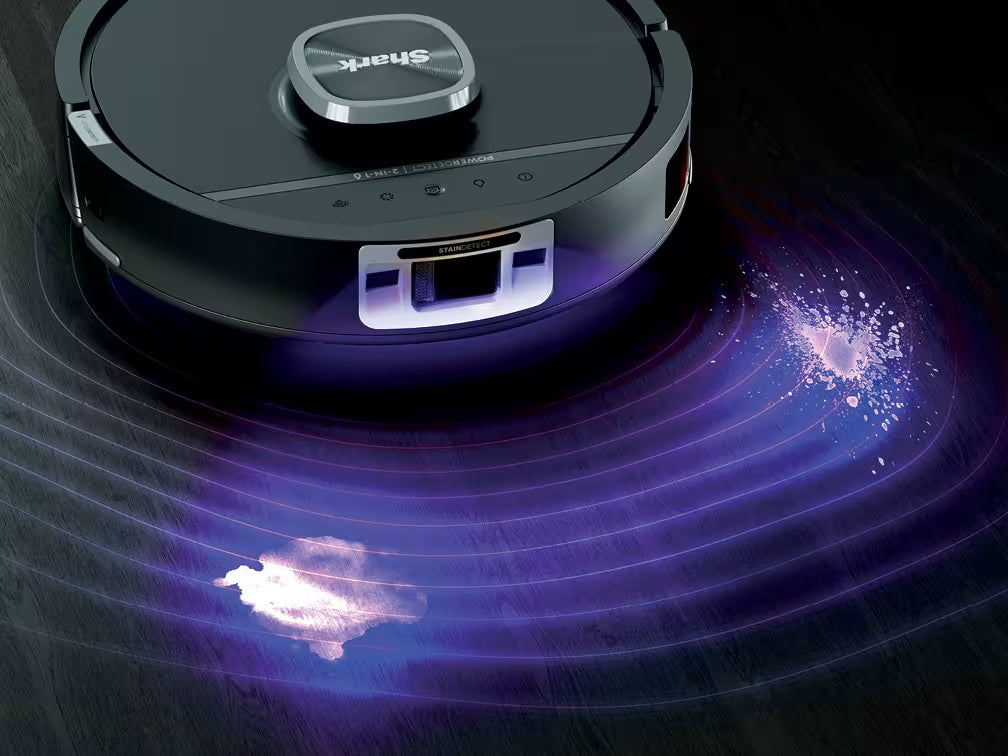
Dirt Detect™ Purple light
Automatically detects dense debris areas and boosts suction, making extra passes until the area is clean. When triggered, the lights under your robot glow purple.
UV Stain Detect™ Blue light
Uses UV light to locate stubborn stains on bare floors, then attacks them with increased mop saturation and a specialised scrubbing motion. Lights glow blue when active.
After a mop mission, your cleaning report shows exactly where stains were found. You can re-clean those areas or use Spot Clean for targeted stain removal. Toggle UV Stain Detect™ on or off in the app.
Recharge & Resume On by default
Battery running low mid-clean? Your robot returns to base, recharges, then picks up exactly where it left off. No input needed.
Evacuate & Resume
Enable in Settings. Your robot returns to base to empty its dustbin mid-clean, then heads straight back out to finish the job.
Scheduling & Do Not Disturb
|
Tap ☰ > Schedule, then tap + ADD A SCHEDULE to set recurring cleans by day, time, and cleaning mode. Set it once and let your robot handle the rest. 🌙 Do Not Disturb Set quiet hours so your robot won't run at night. In the example shown, Do Not Disturb is active from 10:00 PM to 6:00 AM daily. Adjust to suit your household in the Schedule screen. |
Editing Your Map & No-Go Zones
|
Go to ☰ > Map > Edit Map to customise your floor plan. Rooms tab Use Merge, Split, and Label tools to name and organise rooms exactly as you'd like. Zones tab — No-Go Zones Draw polygons on the map to block off areas you want your robot to avoid — pet bowls, charging cables, or delicate rugs. Important Don't move the base — if the base is relocated, your robot will need to remap your entire home from scratch. |
Cleaning History & Reports
|
After every clean, the app generates a Cleaning Report. Tap ☰ > Schedule to review the past 30 days. Each report shows:
|
Voice Control — Alexa & Google Assistant
|
The easiest way to connect is through the app. Go to ☰ > Settings > Smart Home, then tap Google or Alexa and follow the in-app prompts to link your account. Prefer to set up manually? Follow the steps below. |
|
Amazon Alexa — manual setup
Try saying
|
Google Assistant — manual setup iPhone
Android
Try saying
|
App & Connectivity Troubleshooting
| Can't connect to Wi-Fi | Make sure you're on a 2.4 GHz network (not 5 GHz). Disable VPN or proxy. Turn off Wi-Fi isolation on your router. On iOS, go to Settings > Privacy > Local Network and enable SharkClean. |
| Wi-Fi button not responding | Hold the Vacuum + Dock/Power + Mop buttons together for 3 seconds to reset Wi-Fi. |
| Robot randomly disconnects | Normal under furniture or far from the router — your robot reconnects automatically. If not: power off, wait 30 seconds, then power back on at the base. |
| Forgot your password | Tap Forgot Password on the sign-in screen. A reset link will be sent from mysharkninja@sharkninja.com. Check your spam folder if you don't see it. |
| Still stuck? | Visit support.sharkninja.com or call 1-888-668-9600 for robot support. |